Saved Blocks
In this article, you’ll learn how to use Saved Blocks, reuse them in your templates, and update them whenever needed.
🔧 How to Use
Saved Blocks allow you to store parts of your email design and reuse them later. This is useful for elements that appear often, such as headers, footers, product sections, or contact information.
Instead of recreating the same design every time, you can save a block once and quickly add it to other templates.
💡 When to Use Saved Blocks
Saved Blocks are helpful when you want to reuse:
- Email headers
- Email footers
- Product cards
- Social media sections
- Contact information blocks
- Any custom content layout
Once saved, the block can be added to any new template with a simple drag and drop. ✨
💾 Saving a Block
- Open your email template in the editor.
- Select the structure that contains the block you want to save.
- Click Save as Block.
- Enter a name for the block so you can easily find it later.
- Click Save.
Your block is now stored in your Saved Blocks tab.

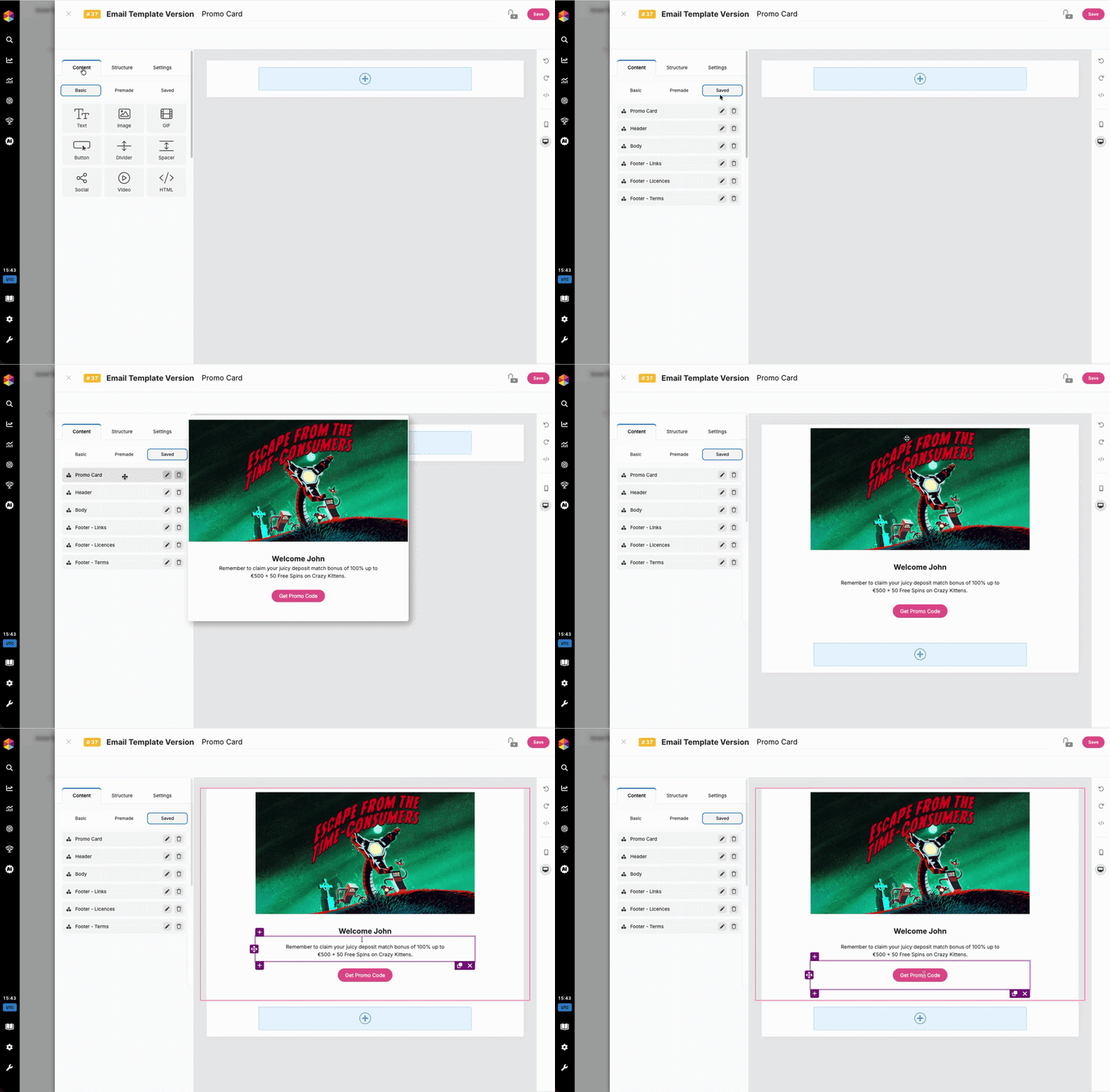
➕ Adding a Saved Block to a Template
- Open your email template in the editor.
- Go to the Content panel.
- Click the Saved tab.
- Find the block you want to use.
- Drag and drop the block into your template.
The saved block will appear exactly as it was originally designed. 🖼️
✏️ Editing a Saved Block
You can modify a Saved Block at any time.
- Insert the Saved Block into a template.
- Edit the content, images, or styles.
- Save the updated version as a new block if you want to reuse the changes next time.
This allows you to keep your blocks reusable and editable.
Keep in mind that if you make changes to a Saved Block, you’ll need to save it as a new Saved Block. Changes will not automatically apply to templates that were already using the previous version of the block.