Rewards Explorer
Search, explore, and manage player Rewards from one place.
🔍 What is Rewards Explorer?
Rewards Explorer gives you a complete view of Rewards activity across your player base. From a single interface, you can search across players, Bonuses, Challenges, and Mini-Game Tokens, view player details and Origin sources, and navigate directly to related items using built-in deep linking.
Access this by navigating to Rewards > Rewards Explorer.
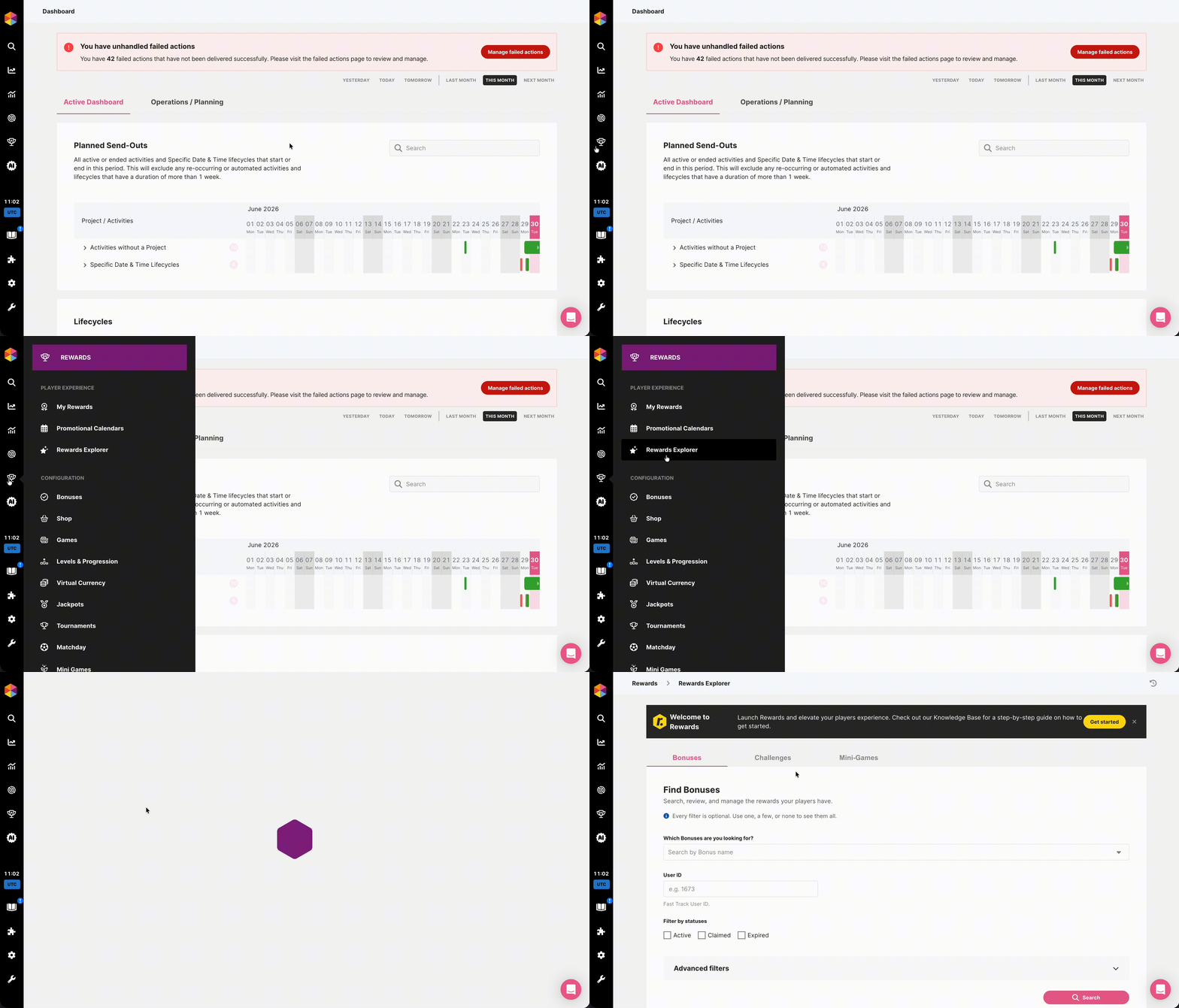
Accessing Rewards Explorer
Accessing Rewards Explorer
👤 Using Rewards Explorer
Rewards Explorer is split into three tabs: Bonuses, Challenges, and Mini-Game Tokens. Each tab shares almost the same filtering structure, allowing you to narrow down results consistently across all Reward types.
Start by selecting the specific Bonuses, Challenges, or Mini-Game Tokens you want to search across using the dropdown at the top. From there, expand Advanced Filters to refine your results further.
The filtering options are:
Statuses
Targeting
Dates
Source
Exclusions
User Details
Filter results by their current status. This section changes depending of the tab. Select one or a combination of:
- Bonuses: Active, Claimed, or Expired.
- Challenges: Active, Completed, or Expired.
- Mini-Game Tokens: Active, Consumed, or Expired.
Filter by type and specific players. The type filter varies depending on the tab you're working in — Bonus Type, Challenge Type, or Game Type — allowing you to narrow results down to a specific category within each Reward type.
- User IDs: Enter one or more User IDs (comma-separated) to search for specific players.
Filter by date range across three date types:
- Created: Filter by when the Reward was created.
- Expires: Filter by when the Reward is set to expire. Toggle Has No Expiry to return only Rewards with no expiry date set.
- Claimed: Filter by when the Reward was claimed.
Each date type supports an After and Before value, allowing you to define a precise date window.
- Source Types: Filter by the source that triggered the Reward. Available sources vary depending on the tab you're working in:
- Bonuses: Manual, Shop Item, Wheel / Mini-Game, Tournament, Activity, Challenge, or Level Up.
- Challenges: Bonus or Activity.
- Mini-Game Tokens: Bonus or Activity.
- Source IDs: Enter one or more Source IDs (comma-separated) to filter by specific sources.
Exclude specific entries from your results using comma-separated values. Some fields vary depending on the tab you're working in:
- Exclude Bonus / Mini-Game IDs: Remove specific Bonuses or Mini-Games from the results.
- Exclude User IDs: Remove specific players from the results.
- Exclude User Bonus / Challenge / Token IDs: Remove specific player-Reward combinations from the results.
- Username: Search by username pattern to find specific players.
- External User ID: Search by External User ID.
- Include User Details Columns in Results: Toggle this on to include additional player information alongside your results.
Once your filters are set, click Run to execute the search.

Using the Rewards Explorer
Using the Rewards Explorer
❓ What can you do with Rewards Explorer?
Once you've run a search, Rewards Explorer gives you a set of actions to manage your results beyond simply viewing them.
⏱️ Expire Matching Items
An Expire Matching option appears alongside the Run button, letting you manually expire all items matching your current filters in one action. This is particularly useful for cleaning up long-running Challenges or Bonuses that have outlasted their intended campaign timing.
Expire Matching only works when filtering by Active state. Combining Active with other states will prevent the expiry from running.
Your active filters are displayed above the results, giving you a clear view of exactly what will be affected before proceeding.
Clicking Expire Matching opens a confirmation modal displaying the total number of items that will be expired. Before confirming, fill in the following:
- Internal Reason and External Reason: Both fields are required.
- Max Records to Expire: The maximum number of records to expire in this action. Defaults to 10,000 if left empty, with a hard cap of 50,000.
This action cannot be undone. Review your active filters carefully before confirming to ensure only the intended items are expired.
Once confirmed, click Expire to apply.
📊 Export to CSV
Need your data outside the platform? Use Export to CSV to export your full search results in a single click. Exports run in the background, so you can keep working while larger files are prepared. Simply name your export and download it once it's ready.
👥 Create a Segment
Turn any search into a reusable audience with Create a Segment from Your Results. With one click, build a segment from the players matching your filters, with a preview showing exactly how many unique players it will include before you confirm.